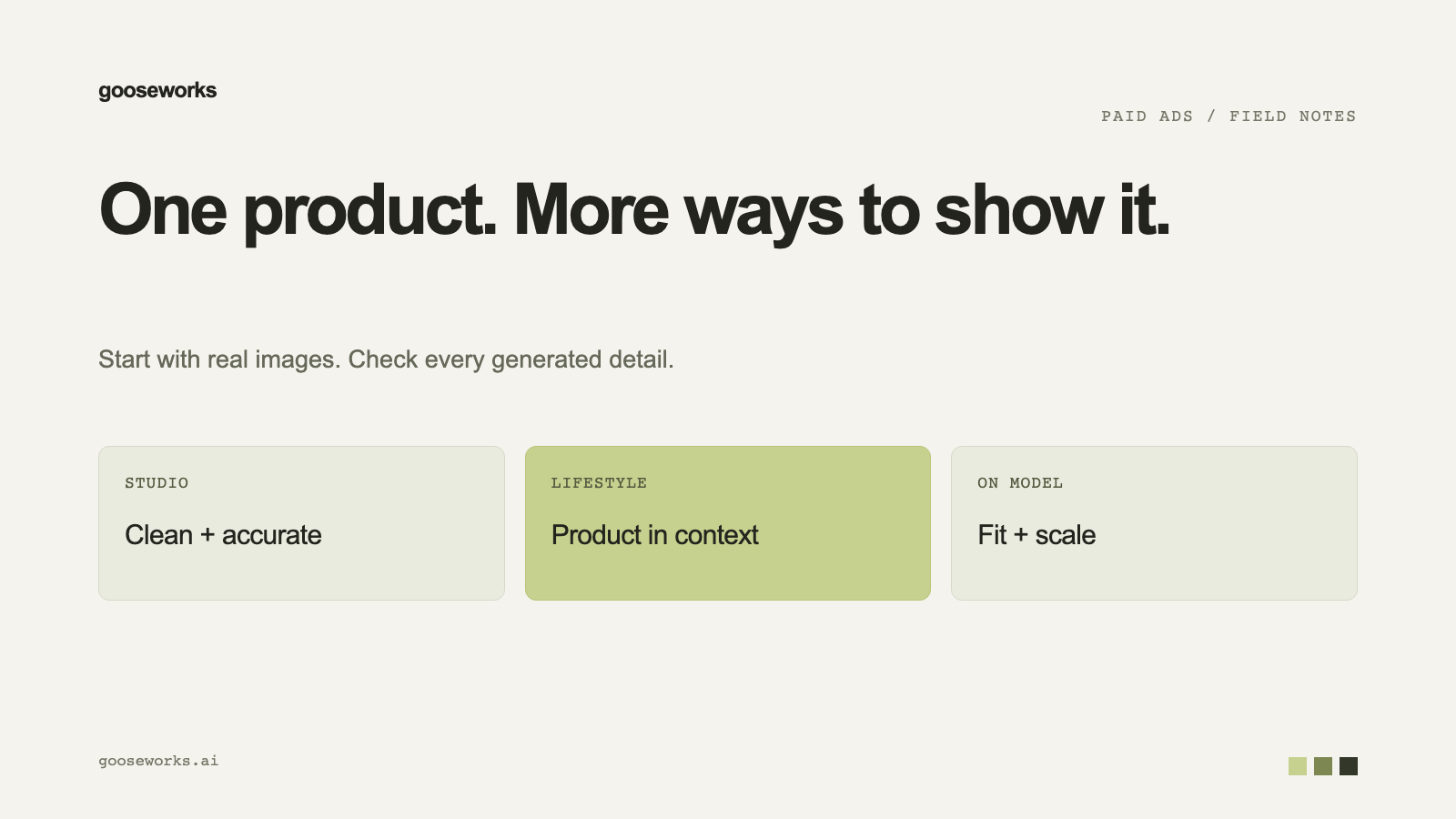

Ads and product pages need more photos than most brands have. AI product photography can turn the images you already own into studio shots, lifestyle scenes and on-model looks. The risk is a product that drifts from the real thing. This is how to keep it accurate.
Start from real product images
Every shoot starts from a product. In Goose's Product Photos you can import one from:
- A URL: a Shopify store, a product page or a direct image URL. Goose fetches the product, and for a store its catalog, and re-hosts the images.
- An image upload: drop in a photo and name the product.
Shoot it
- Pick the source images. The first is the main reference. Add other angles for a truer result.
- Choose the look: the setting, whether the product appears alone or with a model, the framing and the lighting. Defaults are set per product category.
- Add a prompt if you want to steer the shot.
- Pick how many photos and the quality, then generate.
Each photo is judged for product fidelity (silhouette, materials, logo, colorway) and retried automatically if it misses. Retries are free, and you are billed only for photos that pass.
Approve before use
Nothing is used in an ad until you approve it. Approving links a photo to its product and adds it to your brand kit. Archived photos are never used in ads.
Add a per-product note
If the AI keeps repeating a mistake on a product (for example, leaving the cap off), add a creative note to that product in the Brand Kit, such as "always show the cap on."
Check before you publish
- Compare against the real product: shape, label text, colors.
- Look at hands, reflections and small print, where AI errors tend to hide.
- Check low-resolution warnings on the source images.
- Software and app brands: upload real screenshots as product images, not a mascot or illustration.
Try it
Product Photos is at make.gooseworks.ai/product-photos. Approved photos are available to every ad you make, as described in how to make AI ad creative that stays on brand.